Welcome to the world of Docker, where shipping software is as smooth as butter on hot toast. Whether you’re a developer, IT professional, or just someone who likes to tinker with technology, Docker is your new best friend. This guide will take you from Docker novice to containerisation connoisseur in no time.
What is Docker and Why Should You Care?
Imagine you’re packing for a holiday. You want everything to fit neatly in your suitcase without any hassle or inconvenience. Docker does the same thing for software: it packages your application, along with all its dependencies, into a neat little container that can run anywhere. Whether you’re deploying on your laptop, a cloud server, or your grandmother’s old desktop, Docker ensures it works perfectly every time.
Getting Started with Docker
Before we jump into the deep end, let’s get Docker installed.
- Install Docker:
- Windows: Download Docker Desktop from here and follow the installation instructions.
- Mac: Download Docker Desktop for Mac from here and follow the installation instructions.
- Linux: Install Docker using your package manager. For example, on Ubuntu:
sudo apt-get update
sudo apt-get install docker-ce docker-ce-cli containerd.io
- Verify Installation:
Open a terminal and run:docker --versionYou should see the Docker version number, confirming that Docker is installed.
Docker Basics: Your First Container
Let’s start with something simple. How about running a basic web server in a Docker container?
- Run a Container:
Open a terminal and run:docker run -d -p 80:80 --name my-nginx nginxThis command does a few things:
-druns the container in detached mode (in the background).-p 80:80maps port 80 on your host to port 80 in the container.--name my-nginxnames the containermy-nginx.nginxspecifies the Docker image to use.
- Verify the Web Server:
Open your web browser and go tohttp://localhost.
You should see the default Nginx welcome page.
Building Your Own Docker Image
Running pre-built images is cool, but building your own image is where the real fun begins. Let’s create a simple Python web app and package it into a Docker container.
- Create Your Application:
Create a new directory for your project:mkdir my-python-app cd my-python-appInside this directory, create a file named
app.pywith the following content:from flask import Flask app = Flask(__name__) @app.route('/') def hello_world(): return 'Hello, Docker!' if __name__ == '__main__': app.run(host='0.0.0.0')
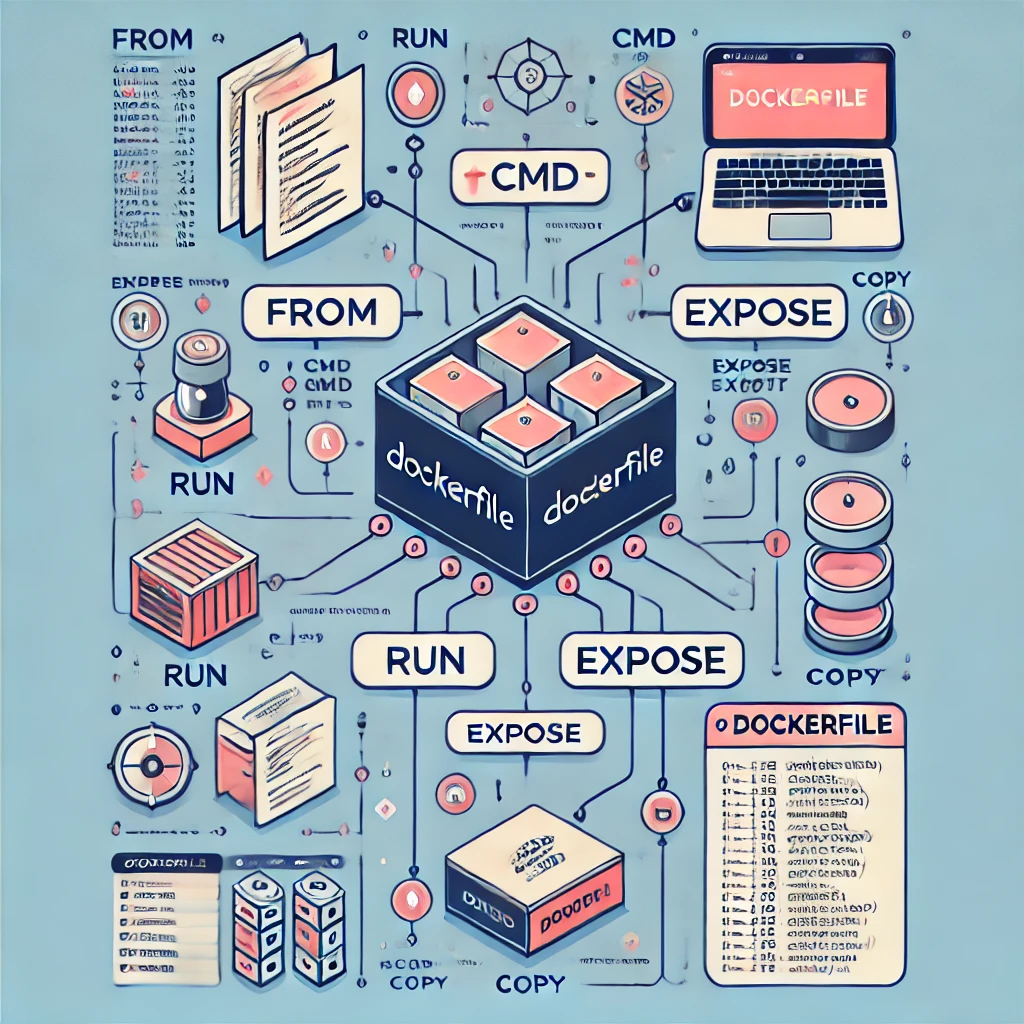
- Create a Dockerfile:
In the same directory, create a file namedDockerfilewith the following content:# Use an official Python runtime as a parent image FROM python:3.8-slim # Set the working directory in the container WORKDIR /app # Copy the current directory contents into the container at /app ADD . /app # Install any needed packages specified in requirements.txt RUN pip install flask # Make port 80 available to the world outside this container EXPOSE 80 # Define environment variable ENV NAME World # Run app.py when the container launches CMD ["python", "app.py"] - Build Your Docker Image:
In your terminal, navigate to the directory containing yourDockerfileand run:docker build -t my-python-app .Docker will package your application into an image named
my-python-app. - Run Your Docker Container:
Now that you have an image, run it with:docker run -d -p 80:80 my-python-appOpen your web browser and go to
http://localhost.
You should seeHello, Docker!.
Docker Compose: Orchestrating Containers
What if you have a more complex application with multiple services? Docker Compose to the rescue! Docker Compose allows you to define and run multi-container Docker applications.
- Create a
docker-compose.ymlFile:
In your project directory, create a file nameddocker-compose.ymlwith the following content:version: '3' services: web: build: . ports: - "80:80" redis: image: "redis:alpine" - Run Docker Compose:
In your terminal, navigate to the directory containing yourdocker-compose.ymlfile and run:docker-compose upThis will start both your Python web app and a Redis container.
Cleaning Up
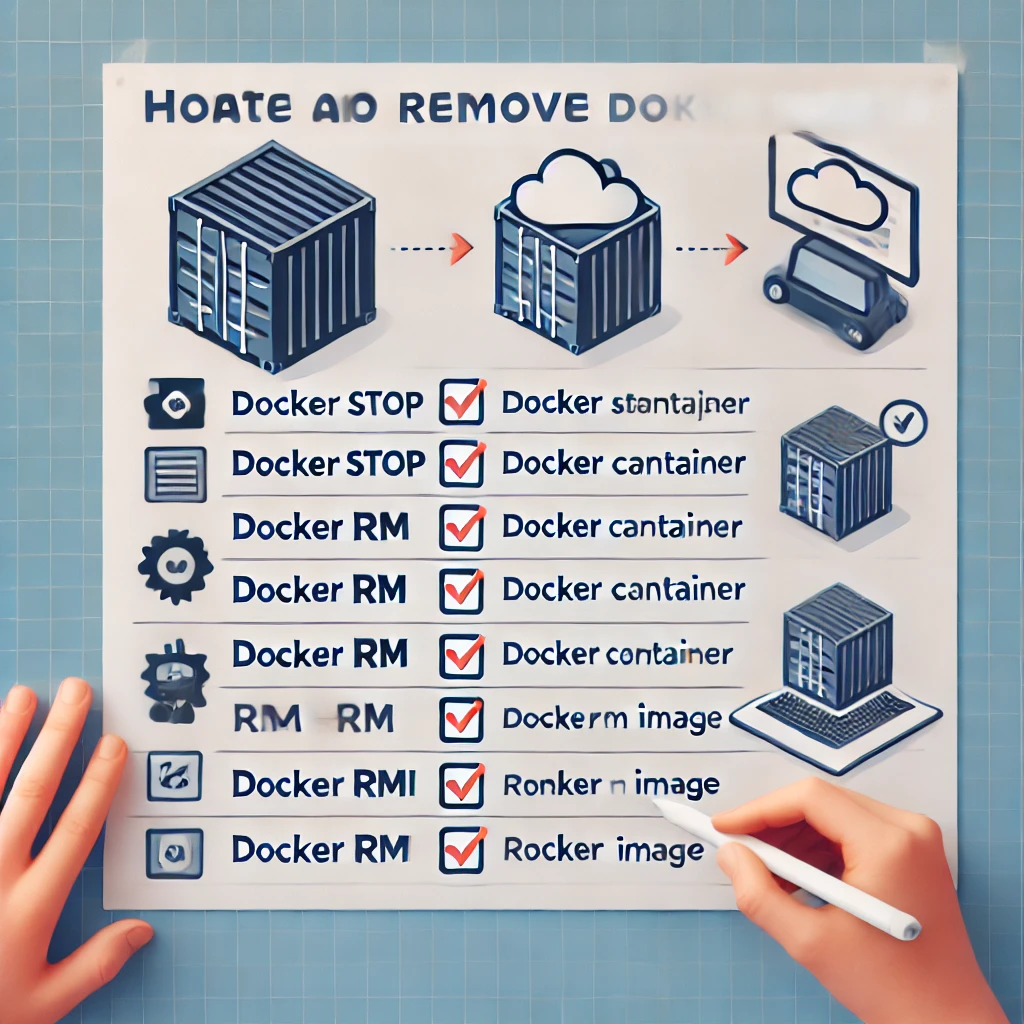
Don’t forget to clean up your Docker environment to free up resources.
- Stop and Remove Containers:
- List all running containers:
docker ps - Stop a running container:
docker stop [container_id] - Remove a container:
docker rm [container_id]
- List all running containers:
- Remove Images:
- List all Docker images:
docker images - Remove an image:
docker rmi [image_id]
- List all Docker images:
Conclusion
Congratulations! You’ve taken your first steps into the world of Docker. By mastering containerisation, you’re well on your way to making your software development process more efficient, scalable, and fun. Docker isn’t just a tool; it’s a game-changer.
